Templates
A template is the reusable shape of a screening. It is an ordered running order of blocks - idents, trailer rules, a certification card, the feature, lighting commands - with the specifics left open. You build a programme from a template, and Cinefin fills in the real media at that point.
Design a "Double Feature" template once, and every double bill you run from it comes out with the same rhythm: house lights, a couple of user media clips, trailers matched to tonight's films, the certification cards, then the features.
The templates list
Open Templates to see every template, how many features it schedules, and a one-line summary of its structure.
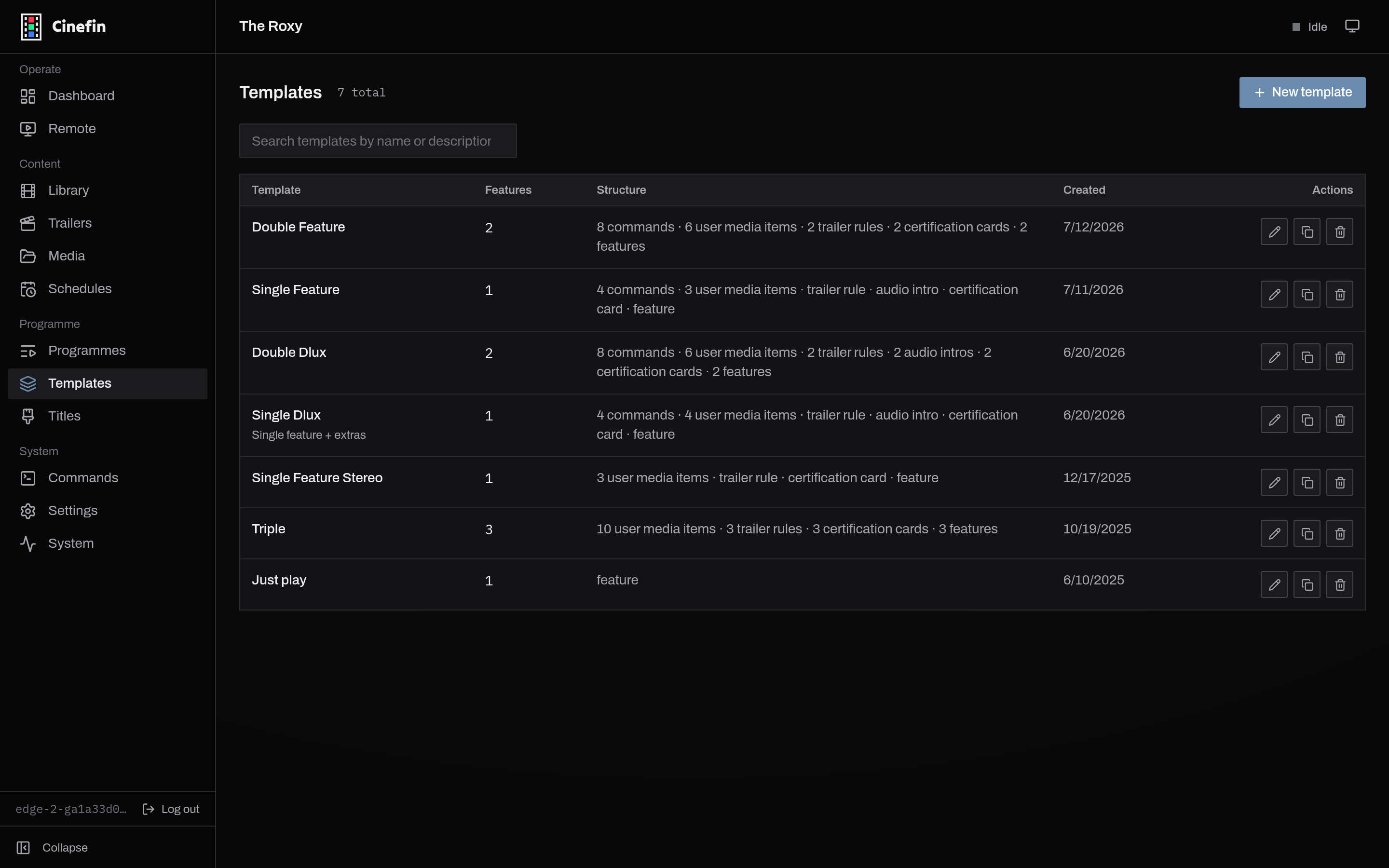
Use New template to start one, the search box to find one, and the row actions to edit, duplicate (a good way to spin a variant off a template that works), or delete.
What a template looks like
Open a template to see its running order. Blocks that resolve at build time show what they will become - a trailer rule reads "3 trailers matching genre, rating", a random user media block reads "one clip", and each Feature block is a placeholder "filled when a programme is built from this template".
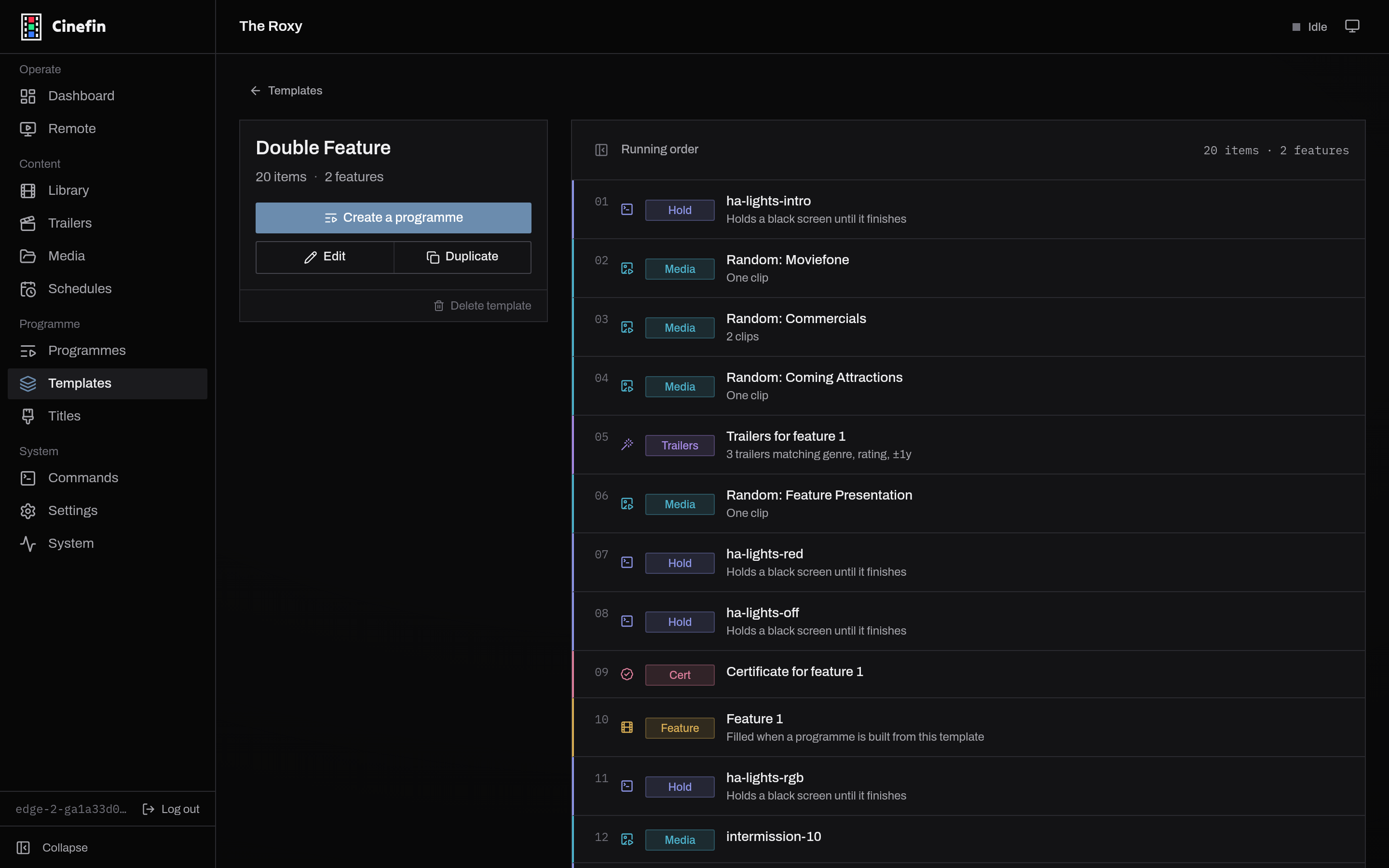
From here, Create a programme builds a real screening from the template, Edit changes the template, and Duplicate copies it.
Block types
Templates deal in rules and placeholders, not fixed media - the actual film is chosen when you build the programme, not when you design the template.
| Block | What it does |
|---|---|
| Feature | A placeholder for a film, chosen when you build the programme |
| Trailer rule | Auto-selects trailers matched to a feature by genre, rating and year |
| Trailer | One specific trailer |
| User media | Your own clip - an ident or notice - either a specific one or a random pick from a tag |
| Audio user media | A short intro matched to a feature's audio format (a Dolby or DTS sting), chosen at build time |
| Command | A system action such as switching lights, run through Home Assistant, REST or a script |
| Certification | The rating card for a feature, generated at build time |
Most blocks refer to a feature by number ("for feature 1"), so they follow whichever film lands in that slot when you build a programme.
Feature slots
A template declares how many features it schedules - one for a single feature, two for a double bill, and so on. Every Feature block fills one numbered slot, and the templates list and detail page show the count ("2 features"). Add a second Feature block, and the trailer, certification and audio-intro blocks can each point at either film.
A Feature block can also carry a credits command - an action that fires when the film reaches its closing credits, handy for bringing the house lights up as the feature ends.
Trailer rules
A trailer rule is the smart part of a template: it picks a fresh set of trailers every time the playlist is generated, so a programme you rebuild next month pulls in whatever trailers you have downloaded since. Expand the rule to set:
- For feature - which feature the trailers should suit.
- Number of trailers - how many to pull (default 3).
- Match on - any of Genre, Rating and Year. Genre and rating are on by default; year is off. Rating never picks a trailer rated above the feature; Year tolerance (±) sets how many years either side of the feature count as a match.
- Tag - restrict the pool to trailers with a given tag, or leave it as Any.
If fewer trailers match than you asked for, only the matches play and the rest of the slot stays empty; if none match, nothing plays there.
Commands
A Command block runs a configured command at its point in the running order. It has two modes:
- Instant (the default) - the command fires invisibly as the show reaches that point, with nothing shown on screen.
- Hold - the screen holds black until the command finishes and its minimum duration has passed, then the show moves on. Use this to give a lighting or projector cue time to complete.
Editing a template
Edit opens the same block editor used for programmes. Drag blocks by the grip handle to reorder them (or select one and use Alt + ↑ / ↓), duplicate or remove them, and add new ones from the Add item palette. Press ? for the full keyboard shortcuts.
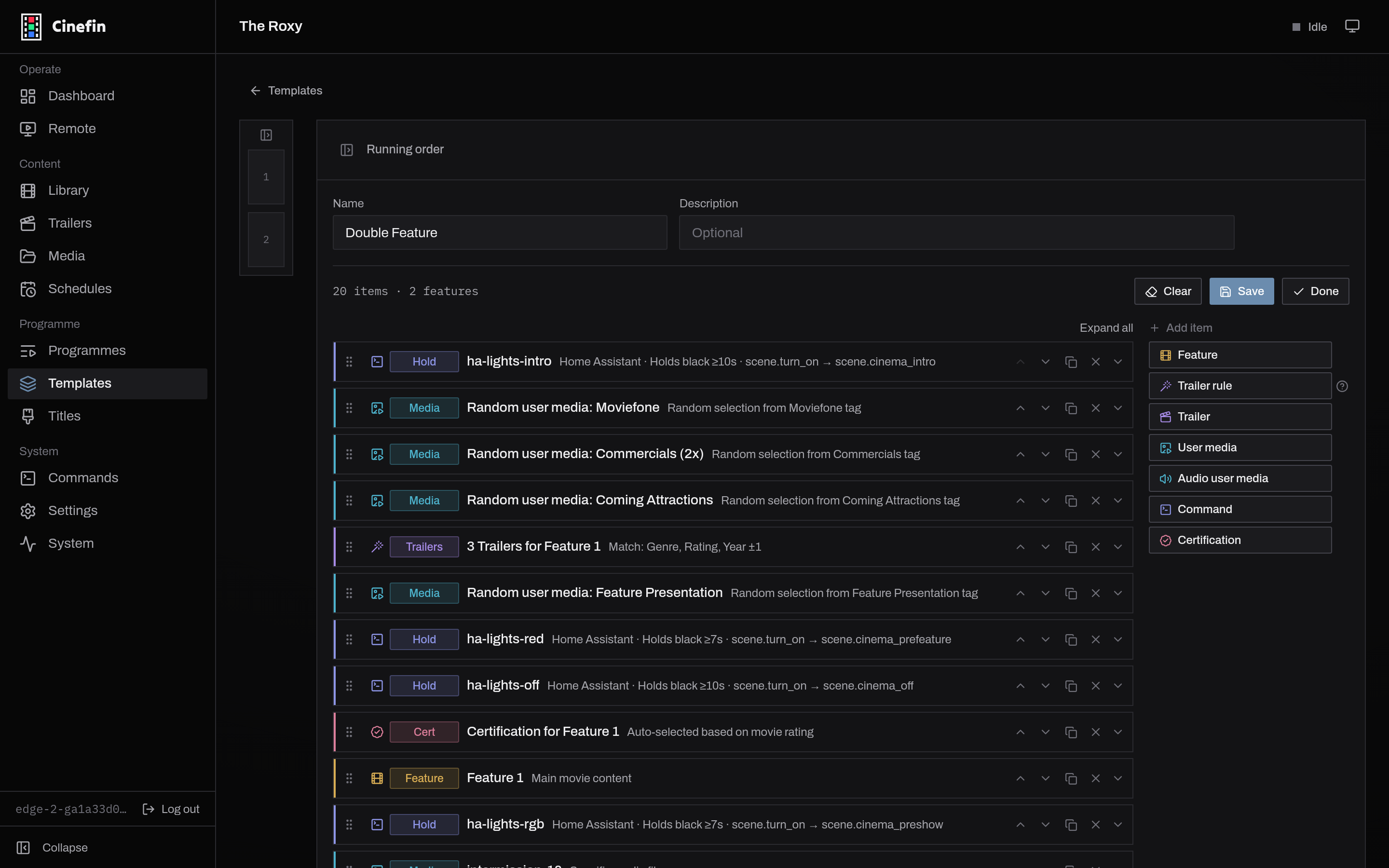
Expand a block to set its rules - the tag a random user media block draws from, how many trailers a rule pulls, whether a command holds a black screen while it runs. Save keeps your changes; Done returns to the template. Editing a template does not touch programmes you have already built from it.
Title templates
A separate kind of template, on the Titles page, lays out the generated title card shown before a feature - poster, title and metadata on a 1920x1080 canvas. Assign a title template to a programme from its Title screen tab to replace the usual ident with a bespoke card for that film. Cinefin ships several layouts (centred poster, side-by-side for double bills, and more) that you can duplicate and adjust.