Playback
Cinefin uses MPV for playback, and you choose between two ways to run it when you add a playout host:
- The playout agent (recommended). A small program that runs MPV on the machine at your TV or projector. Cinefin owns the MPV process through it and sets the screen, resolution and audio from the web interface, and the two can run on different machines over a network.
- A local MPV you run yourself. Cinefin talks to it over a local JSON-IPC socket on the same machine. There is no process management or display setup from Cinefin; you run and configure MPV.
Both are set up the same way, under Settings → Playout → Add host.
Set up a player
The agent is available here: cinefin-playout. It is a single, self-contained Go binary.
-
Download the archive from the project's releases. Releases ship a Linux amd64 archive in two forms: the plain archive bundles MPV, so you don't need to install it separately, and the
-nompvarchive is the agent binary alone, for when you want to use your own MPV. Keep the bundledmpvfile next tocinefin-playout.Windows
A Windows amd64 build (also plain /
-nompv) exists but is experimental and published only on theedgechannel. -
Unzip it and run it. The one binary shows a system-tray icon when run interactively (
./cinefin-playouton Linux), and runs headless when started with--no-ui. - On first run the agent generates an access token. From the tray menu
choose Open control panel to see the host address and token with copy
buttons (it opens the loopback-only status page at
/ui), or use Copy address / Copy token. With no tray, the token is printed to the log and saved to<state_dir>/token. The agent listens on port8089by default. - In Cinefin, open Settings → Playout → Add host, choose the Playout agent (WebSocket) type, paste the address and token, and choose Use.
With an agent host active, set the screen, resolution and audio device from
Cinefin itself under Settings → Playout → Display & audio. Cinefin reads
the real device lists from the agent and writes the choices back to the
agent's config.toml, so the box still boots and shows the idle ident even
when Cinefin is offline. If playback is choppy on a small machine, try
hardware decoding there.
Config file
A config file is optional - with none, the agent runs on defaults and
generates a token on first run. Add a config.toml only to pin the bind
address, a fixed token, or the MPV binary. Copy the sample, edit it, and run
the agent against it:
sudo mkdir -p /etc/cinefin-playout
sudo cp config.example.toml /etc/cinefin-playout/config.toml
sudoedit /etc/cinefin-playout/config.toml
cinefin-playout --config /etc/cinefin-playout/config.toml
The agent searches for a config in this order: the --config flag,
$CINEFIN_PLAYOUT_CONFIG, ./config.toml,
~/.config/cinefin-playout/config.toml, then /etc/cinefin-playout/config.toml.
Graphics and audio normally come from Cinefin, but the [mpv.graphics] and
[mpv.audio] sections let you set them by hand for an offline box (including
headless DRM/KMS and audio passthrough).
For a dedicated box that puts MPV straight on the display without a desktop (DRM mode), make sure the agent user can reach the GPU:
Log out and back in after changing groups. To start the agent at boot,
install the sample systemd unit from the project's etc/ directory and run
it headless with --no-ui:
sudo cp cinefin-playout mpv /usr/local/bin/
sudo cp etc/cinefin-playout.service.example /etc/systemd/system/cinefin-playout.service
sudoedit /etc/systemd/system/cinefin-playout.service   # set User= (and SupplementaryGroups for DRM)
sudo systemctl daemon-reload
sudo systemctl enable --now cinefin-playout.service
The agent owns and supervises MPV itself, so don't also run a standalone MPV service alongside it.
Two machines
If the agent is on a different machine from Cinefin, set the streaming base
URL to Cinefin's address as seen from the playout machine, for example
http://cinema.local:8000. localhost only works when both run on one
machine. Idents, trailers, user media and title cards stream from Cinefin,
so this matters even when your features come from Jellyfin or Plex.
If you already run MPV yourself, point Cinefin straight at it. This suits a box where MPV lives on the same machine as the Cinefin server.
-
Start MPV with a JSON-IPC socket:
-
In Cinefin, open Settings → Playout → Add host and choose the Local mpv (JSON-IPC socket) type.
- Enter the socket path you passed to MPV, for example
/tmp/mpvsocket, and choose Use.
Cinefin connects to the socket and loads the idle ident. Because Cinefin reaches MPV through a local Unix socket, the two must run on the same machine - in Docker, share the socket with a volume mount. Cinefin cannot start or stop this MPV or change its screen and audio; you manage the MPV process yourself.
Playout lifecycle
A programme moves through these states:
Cue a programme to load it, then start playout. Cinefin steps through the playlist and applies each block's settings as it goes.
What's on screen between screenings
When nothing is playing, the screen doesn't go blank. It holds your System Ident, the same clip that opens each programme. Set it under Settings → Playout → Player → Idle & ident.
See System Ident for how to choose and test it.
The remote
The Remote page is the full control surface. It shows what is on screen, the current item and whole-programme timers, and the resolved rundown down the side. When no programme is loaded it reads "No programme loaded" - cue one from a programme's page, or press Start playout.
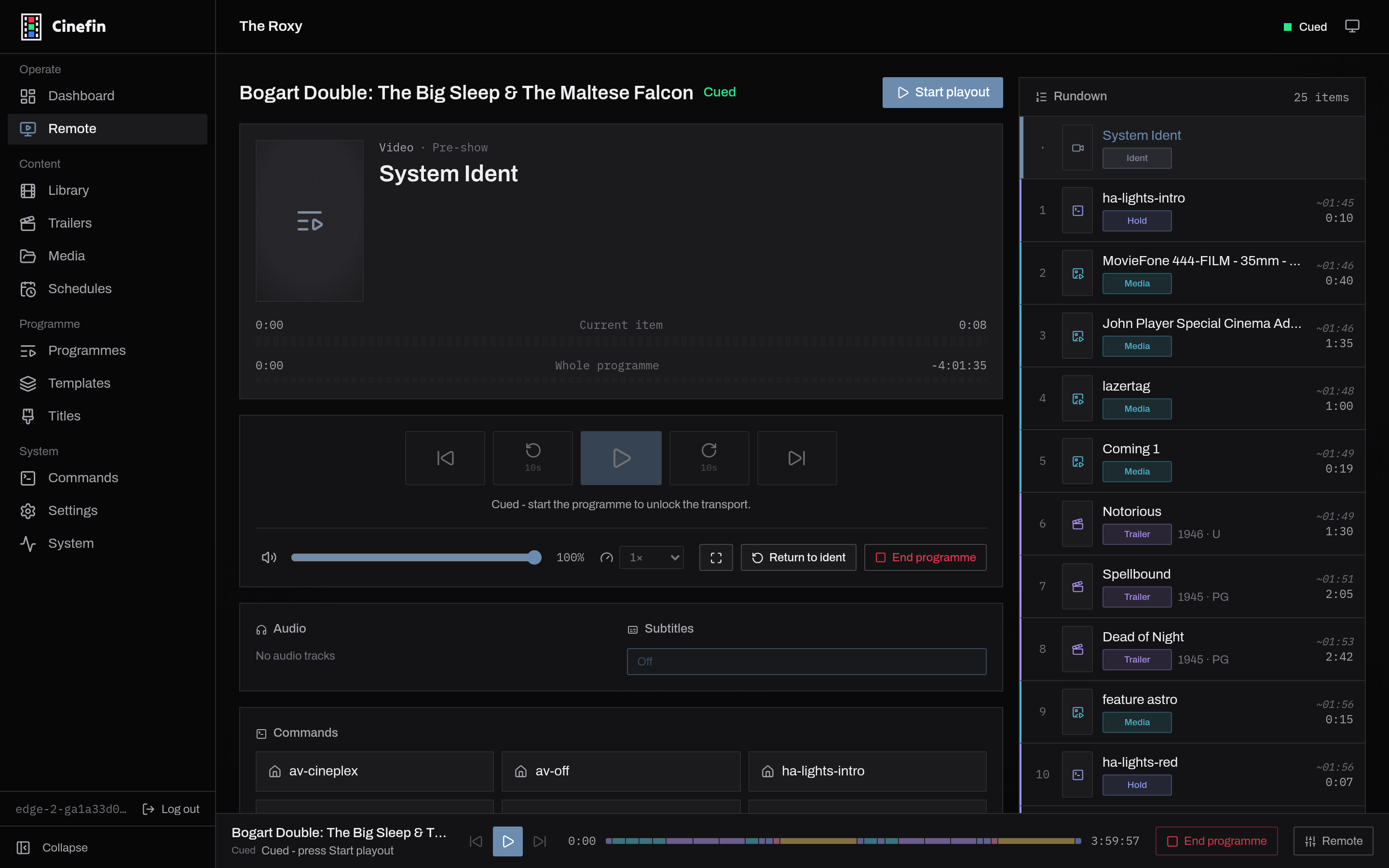
- Transport - previous, skip back, play/pause, restart item, and next.
- Volume and speed - a volume slider and speed presets from 0.5x to 2x, plus fullscreen and a Stop that ends the screening.
- Tracks - pick the audio and subtitle track for what is playing now.
- Commands - fire any configured command by hand: lights, projector input, AV power. Useful for testing, or driving the room mid-screening.
The Technical info panel at the foot exposes the raw player state for troubleshooting.
Audio and subtitles
Each block can pin an audio track and a subtitle track, set on the block in the programme editor. A subtitled trailer can play with subtitles on while the feature uses your usual audio. The Remote's Tracks controls override the current item on the fly.
Controls everywhere
The playout bar sits on every page with play, pause, skip, seek and volume - so you never have to leave what you are doing to nudge a screening. The same controls are on the Remote page and in the REST API, so home automation can drive them too.