Programmes
A programme is one complete screening: everything that plays from the moment the lights dim to the end of the feature - idents, trailers, the certification card, the feature itself, and any lighting or projector commands in between.
Programmes are almost always built from a template, which is the reusable shape of a screening. The template does the arranging; the programme turns it into real, fixed media for one showing.
The programmes list
Open Programmes to see every screening you have built, with its runtime, item count and when it last played.
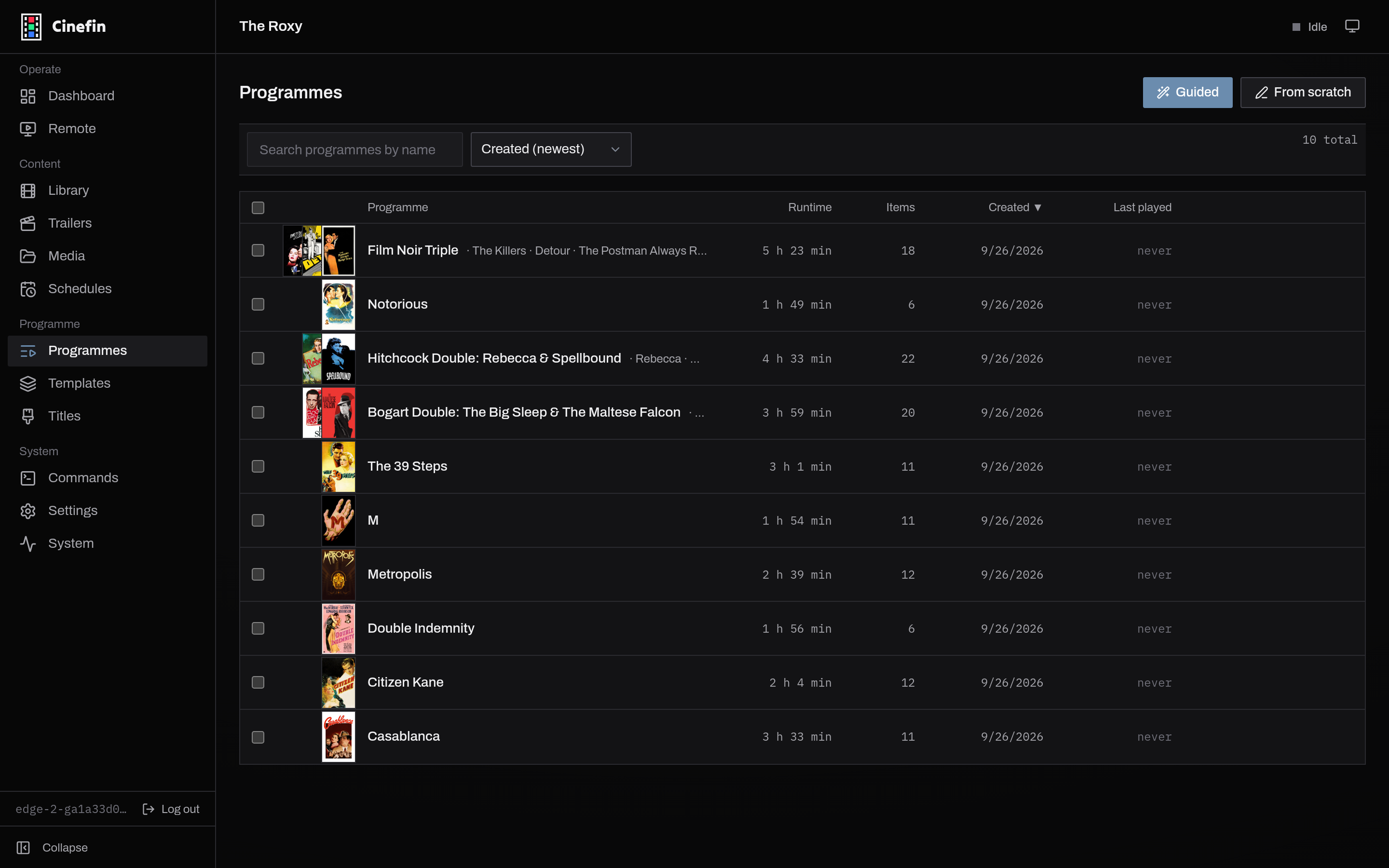
Two ways to make one:
- Create programme - start from a template. Cinefin resolves the template's rules into concrete media for you. This is the usual route.
- Build from scratch - start with an empty running order and add every block yourself.
Building from a template
Building a programme from a template turns every rule into real media:
- Trailer rules pick actual trailers that match the feature.
- Random movie and random user media blocks choose a specific film or clip.
- Certification and title cards are generated for the feature.
The result is a fixed playlist - what you see is exactly what will play. Cinefin regenerates it whenever you change the programme, or you can force a refresh with Regenerate (handy to reshuffle random picks).
The rundown
A programme's detail page opens on the Rundown: the resolved playlist, block by block, with a badge for each type (feature, trailer, user media, certification, command, and so on) and how many playlist entries each block produced.
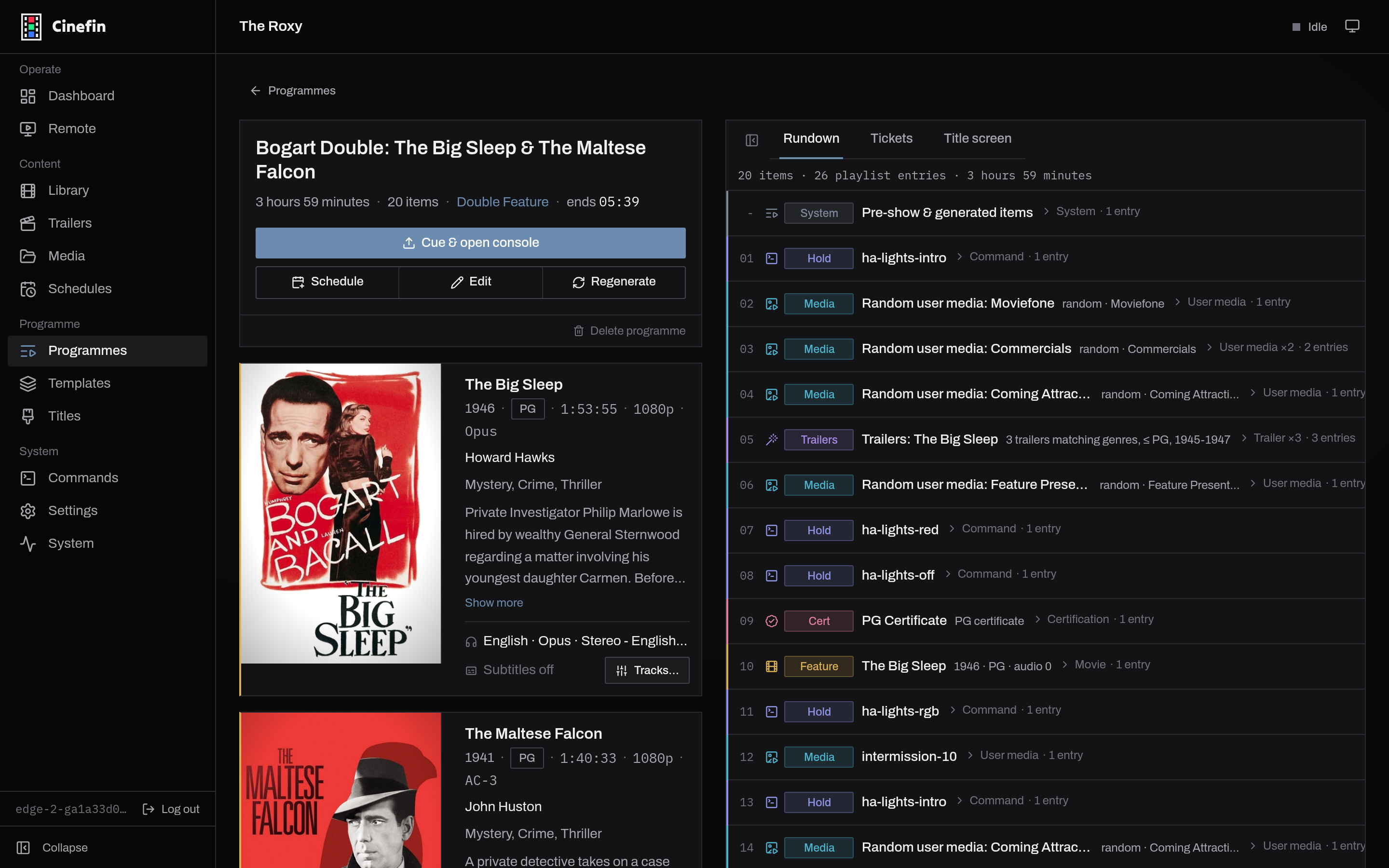
If a film a programme relies on later leaves your library, Cinefin flags it here rather than failing silently - the block is skipped at play time until you edit the programme to replace it.
From this page you can Cue & open console to load the programme and jump to playback, Schedule it for a showtime (see scheduling), Edit it, Regenerate the playlist, or delete it. The Tickets and Title screen tabs preview the printed ticket and the generated title card.
Editing blocks
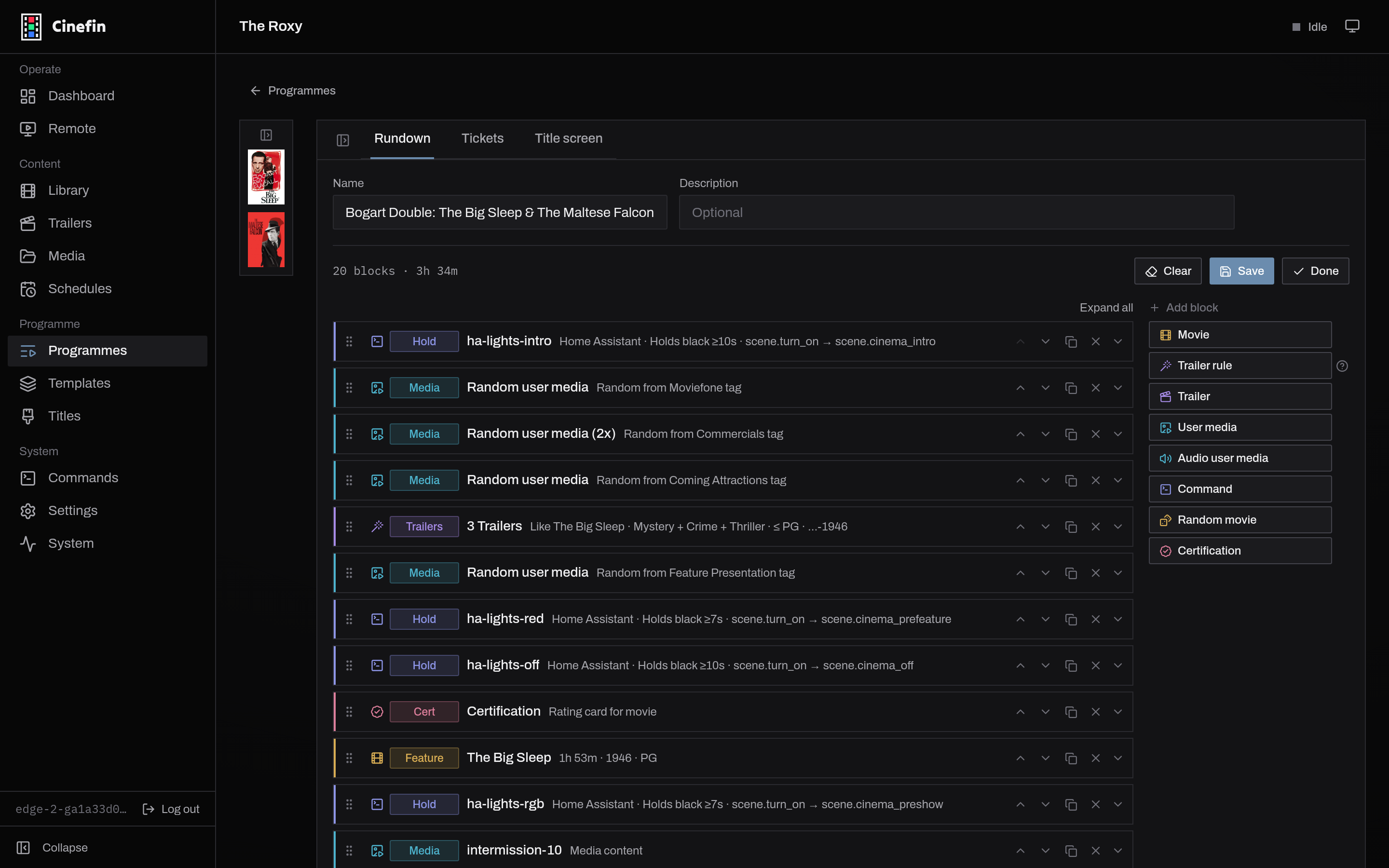
Edit opens the block editor. Drag blocks by the grip handle to reorder them, and use each block's controls to duplicate, remove, or move it. Add block lists every block type:
| Block | What it plays |
|---|---|
| Movie | A specific film from the library |
| Trailer rule | Trailers matched to the feature by genre, rating and year |
| Trailer | One specific trailer |
| User media | Your own clip, either a specific one or a random pick from a tag |
| Audio user media | A short intro matched to a feature's audio format (a Dolby or DTS sting) |
| Command | An action such as switching lights, run through Home Assistant, REST or a script |
| Random movie | A film picked when the programme is built, by genre, year or rating |
| Certification | The rating card for the feature, generated for you |
Expand a block to set its options: the tag a random clip is drawn from, whether a command holds a black screen while it runs, the audio and subtitle tracks a feature should use, and so on. Save keeps your changes and rebuilds the playlist; Done returns to the rundown.
Title and certification cards
A programme can open with a generated title card for the feature (poster, title and showtime) in place of the usual ident. Cards are laid out by a title template; assign one from the programme's Title screen tab. See templates.
Certification cards are built from the feature's rating. BBFC and MPAA are both supported; choose your scheme in Settings → Theater, and fill missing ratings with More → Find certificates on the library source (see Library sync).